Give your AI assistant a memory that lasts between chats
Kineviz MCP lets your assistant save what it learns as a graph: the services, people and decisions in your work, and how they connect. In a new chat, your assistant can look up what it saved before. You can open that graph and check it.
Kineviz MCP comes with Kineviz Pro, $36 a month. MCP (Model Context Protocol) is the standard way AI tools connect to outside services.
What your assistant can do
You ask in your own words. The assistant uses Kineviz.
Your work is stored in a project: a graph database plus its saved views. A view is a saved picture of part of the graph. Your assistant works only on the projects you can open, with your permissions.
| You ask | The assistant | You get |
|---|---|---|
| “Start a Kineviz project for this repo.” | Creates a project. | An empty graph with a name, ready for data. |
| “Load these CSV exports.” | Uploads the files to the project and loads them in one step. | Every row in the graph, with no row-by-row inserts. |
| “Which services call the billing service?” | Writes a query in Cypher, the graph query language, and runs it. | The services and calls that answer the question. |
| “Remember that the payments team owns this service.” | Adds the fact to the graph. | A fact the next chat can find. |
| “Save that as a view.” | Saves the result as a named view. | A link that opens the view on the Kineviz canvas. |
| “Delete the test project.” | Deletes the project, or a view in it. | The project is gone. The assistant can delete anything you could delete yourself, so check before you say yes. |
Setup
Set up Kineviz MCP in three steps
Three steps and one entry in your AI client’s settings. From then on, your assistant can start a Kineviz project whenever you ask, and pick it up again in your next chat.
- Create a Kineviz Cloud accountYour assistant signs in as you, so it needs an account to sign in to. Open Kineviz Cloud.
- Add the server to your clientAdd this entry to your client’s MCP settings.
{ "mcpServers": { "kineviz": { "url": "https://cloud.kineviz.com/mcp" } } } - Sign in when askedThe first time your assistant connects, sign in with your Kineviz account. Then ask it to start a project.
Check what it saved
Open your assistant’s memory and look at it
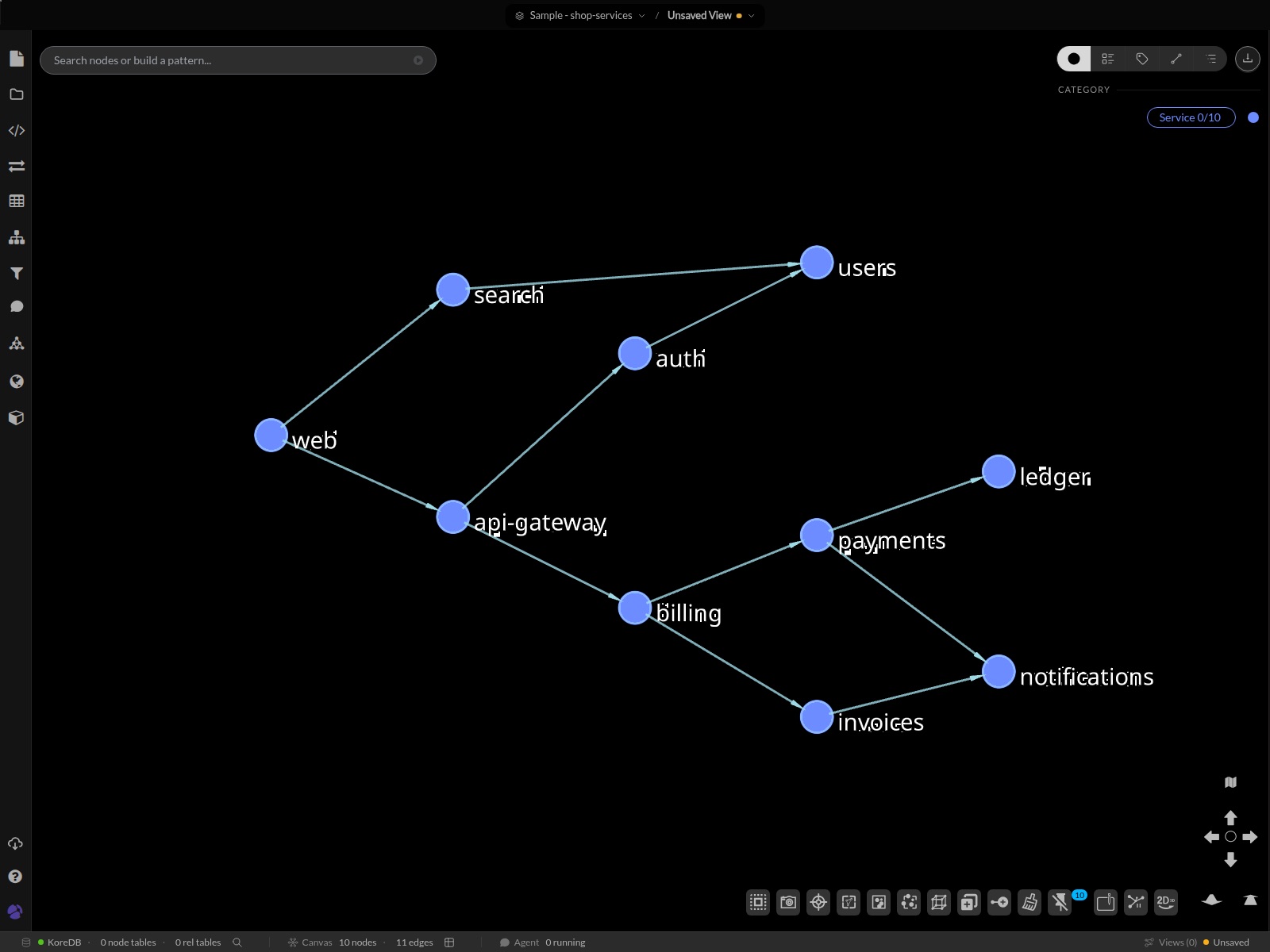
What your assistant saves goes into a Kineviz project. Open that project on the Kineviz canvas to see what it stored and how the pieces connect. If something looks wrong, you can check it against the data yourself.
Where your data goes
Whatever your assistant reads from a project is sent to the AI provider behind your assistant, under that provider’s terms. Keep data your organization does not allow in that AI tool out of projects your assistant can open.
Things to try
Two prompts to start with
Map a codebase
“Make a Kineviz project for this repo. Record which services call which, and who owns each one.”
Keep research notes
“Add these five papers to my research project. Link each claim to the paper that makes it.”
Also from Kineviz
Get Kineviz MCP
Kineviz MCP comes with Kineviz Pro
See the canvas first
Individual
Free
- Explore graphs on the Kineviz canvas
- Learn how projects and views work before you connect an assistant
- For learning, evaluation and personal projects, not production work
- Community support
Give your assistant a memory
Kineviz Pro
$36 a month
- Kineviz MCP for the AI assistant you already use
- Your assistant creates projects, loads data, runs queries and saves views
- Open its projects on the Kineviz canvas
- Five times the usage of the free plan, for production work
- Upgrade takes effect at once; never locked in
For teams
Kineviz Enterprise
Custom
- Everything in Pro, with usage sized to your organization
- Deploy in the cloud or on your own servers
- Single sign-on and advanced access control
- Governance and an audit log
- Dedicated support and onboarding
Frequently Asked Questions
What is Kineviz MCP?
Kineviz MCP is a Model Context Protocol server. It gives an AI assistant a graph database it can use as memory. The assistant can create projects, load data, run queries, add facts and save views. You keep using the AI client you already have.
What is MCP?
MCP stands for Model Context Protocol. It is the standard way AI assistants connect to outside tools and data. An AI client that supports MCP can use any MCP server you add to its settings.
Which AI clients work with Kineviz MCP?
Clients that support remote MCP servers. You add one entry to the client’s MCP settings and sign in with your Kineviz account.
Can my assistant see data I can’t?
No. Every action runs as you, with your permissions. The assistant can open only the projects you can open.
How do I look at what my assistant saved?
Open a saved view on the Kineviz canvas in your browser. You can explore it, filter it and follow the links. You can also query the project yourself.
Does my AI provider see my project data?
Yes, for anything your assistant reads. The assistant sends what it reads from a project to its AI provider, under that provider’s terms.
Give your assistant a memory you can check
Buy Kineviz Pro, add the server to your AI client, and start your first project.
Kineviz MCP comes with Kineviz Pro, $36 a month. Compare plans.
Cypher is a registered trademark of Neo4j, Inc. Other names are trademarks of their respective owners.